How to Update Your Profile
A short, one time setup so other members and visitors can find you. Follow the numbered rings on each screen.
Your Professional Details
This is what other members and visitors see.
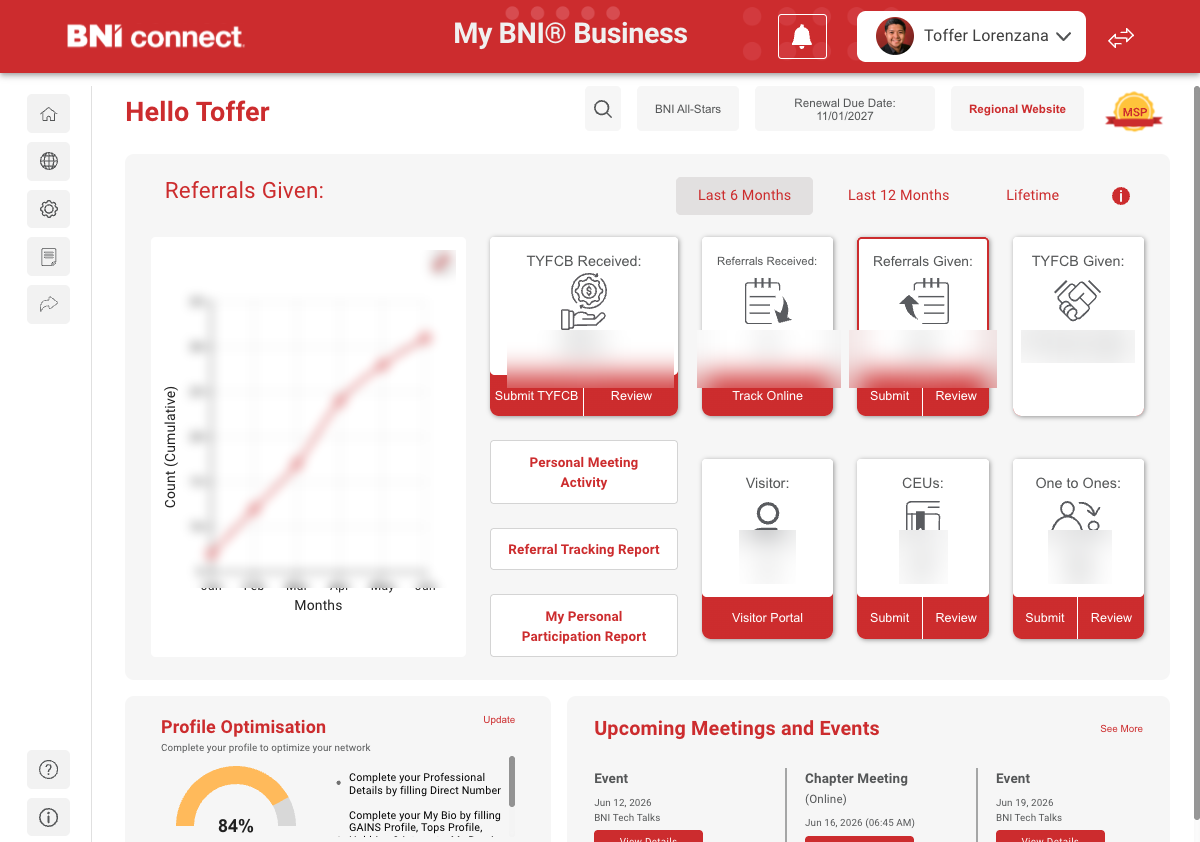
Click your name
Look at the top right corner. That is your name and photo. Click it.
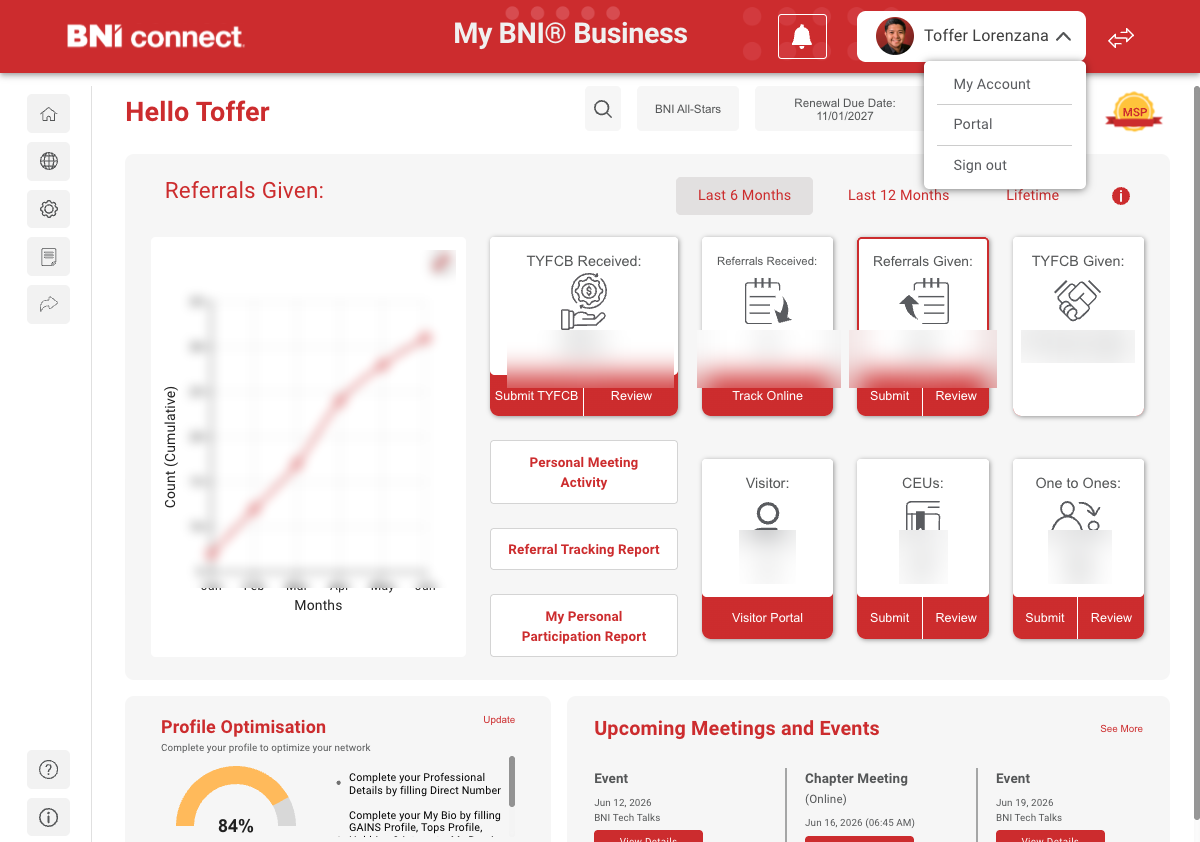
Click My Account
A short menu appears. Click My Account. It opens your profile.
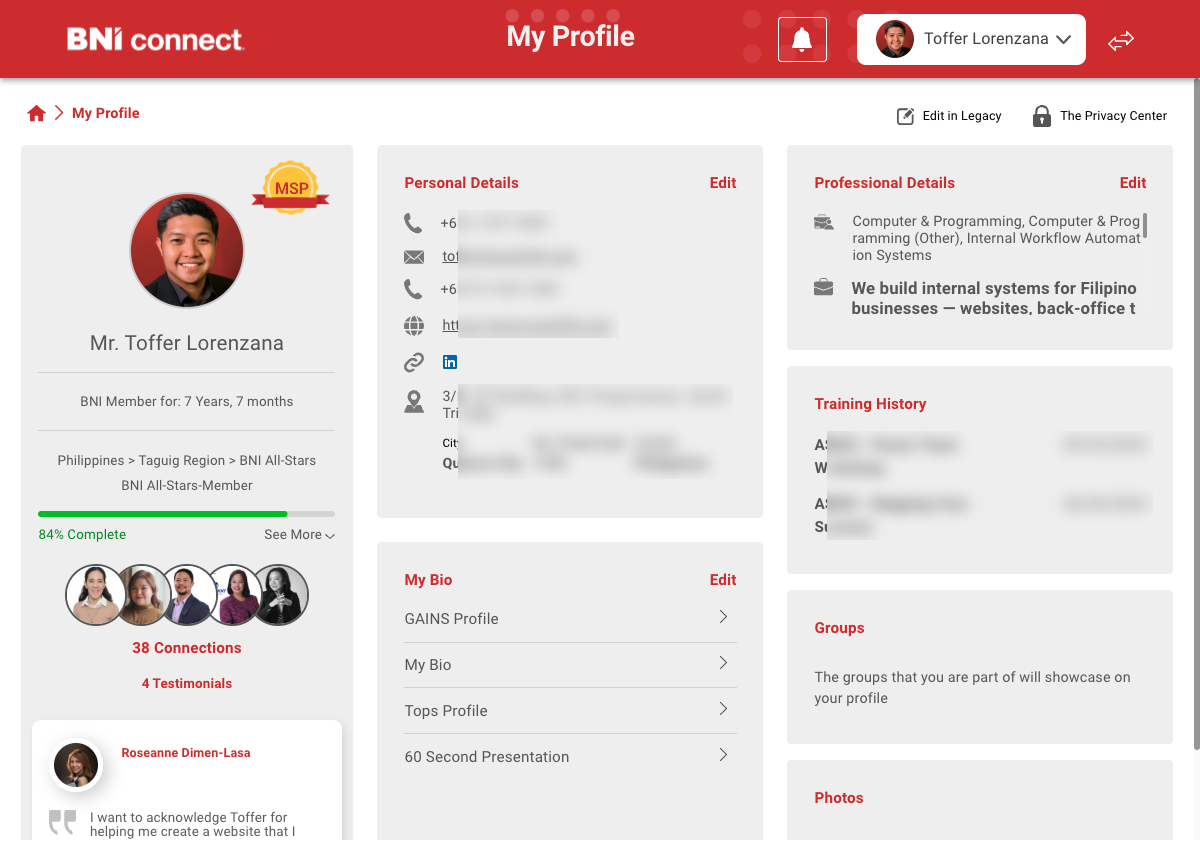
Open Professional Details
This is your profile. On the right side, find Professional Details and click Edit.
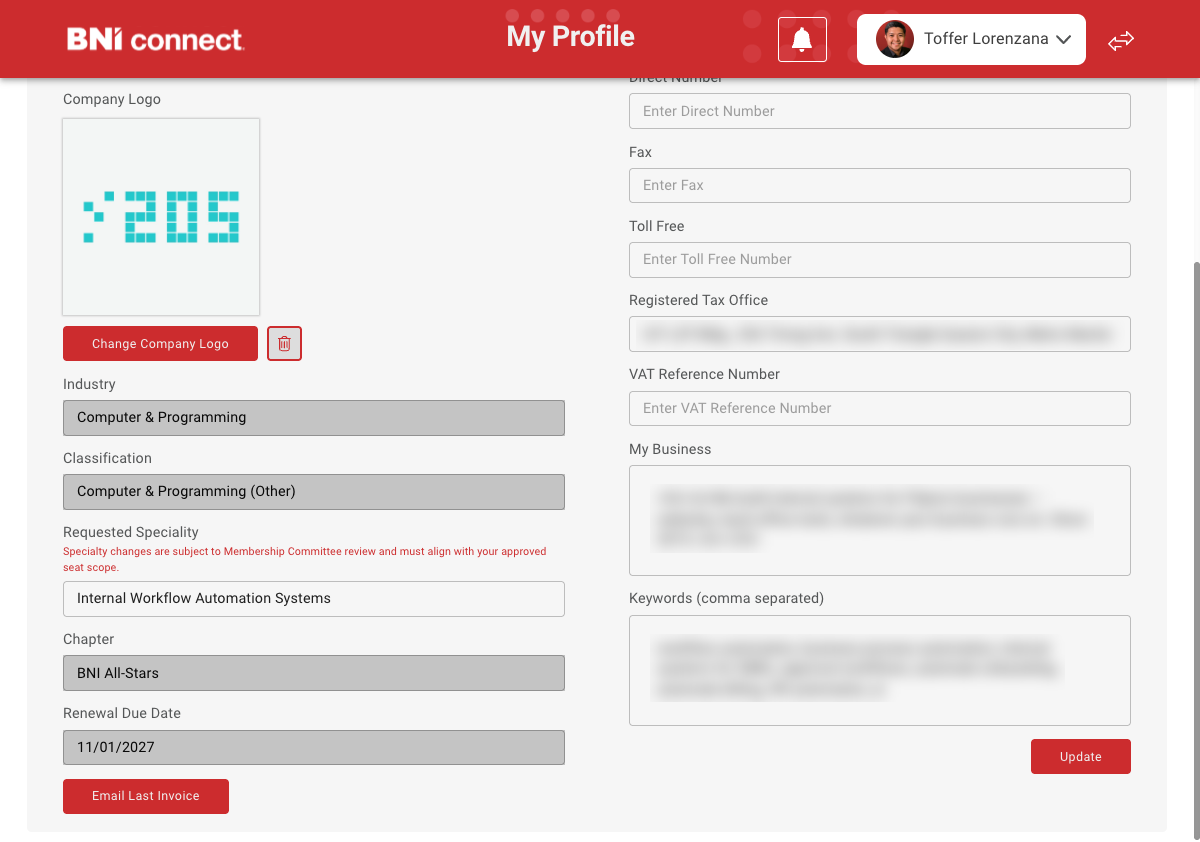
Describe what you do
Write a short description in My Business, then add Keywords. Keywords are the words a member might search to find you.
Save your changes
Click the red Update button at the bottom right. This part of your profile is now live.
Some fields are locked, and that is normal
Company Name, Industry, Classification and Specialty appear greyed out. Only the Membership Committee can change these, through the Request Change button. Everything else, you can edit anytime.
Your Tops Profile
This is how the chapter knows exactly who to refer to you.
Edit your My Bio box
Go back to your profile. Find the My Bio box in the middle column and click its Edit.
Open the Tops Profile tab
Along the top you will see tabs. Click Tops Profile.
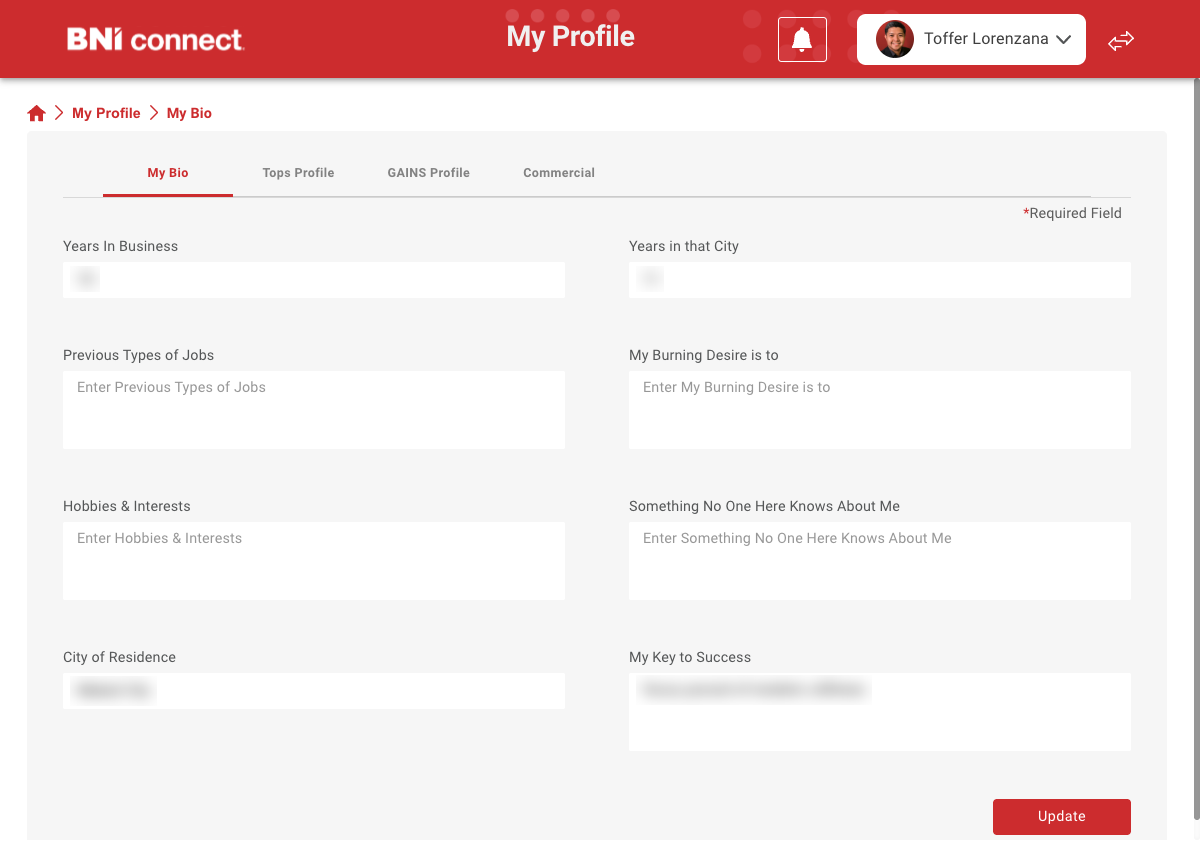
Fill in the three boxes
Ideal Referral, Top Product, and the Top Problem you solve. Be specific. Vague answers get no referrals.
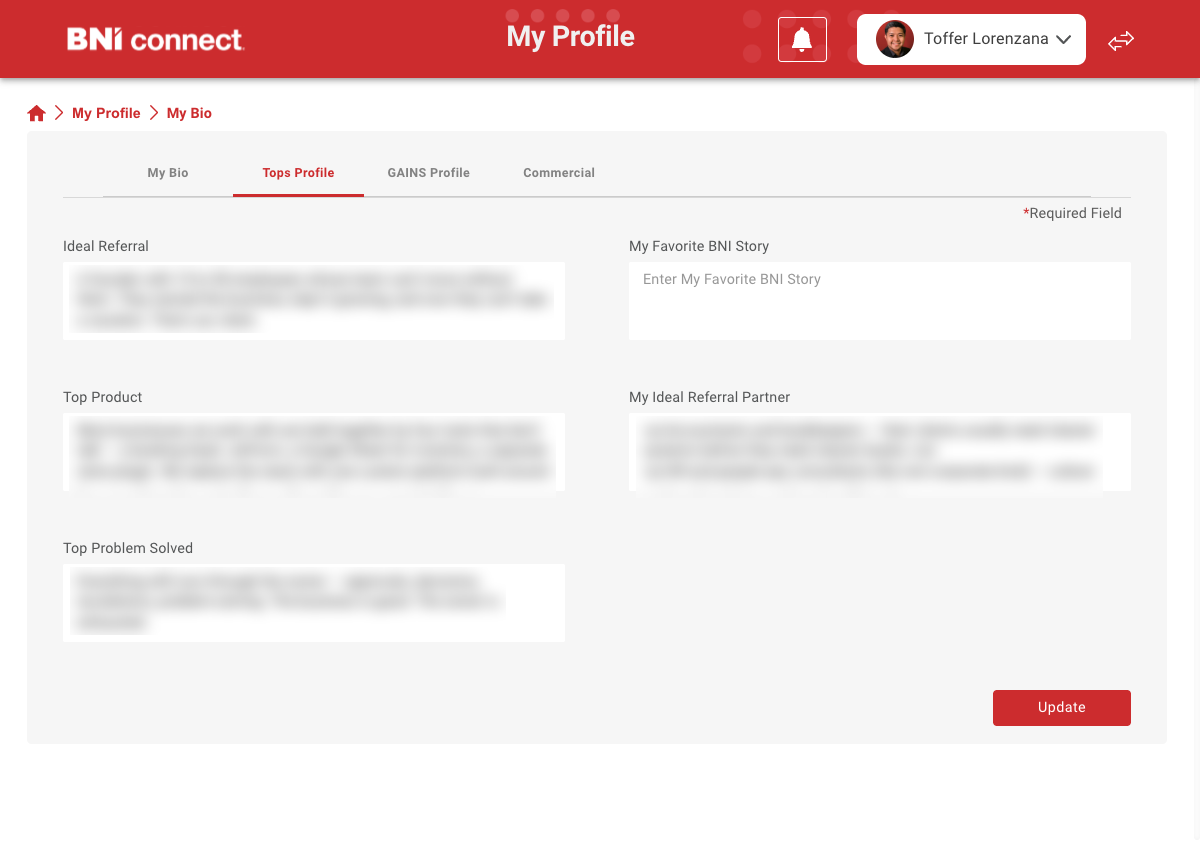
Save your changes
Click the red Update button. Your profile is now complete and ready for referrals.
Each tab saves on its own. Always click Update before you switch tabs.
You are all set
That is the whole profile. If you get stuck on any step, message your chapter's communications coordinator lead.
Help every chapter in Taguig look this good
Liked how easy this was? Come make more like it. Join the Regional Communications team and take your Givers Gain® across Taguig.
Message me on WhatsApp Goes straight to Toffer, your Regional Comms Coordinator.